If you don't have DHCP in your network, please, follow this instructions
Connect to the access point web interface
To access the web interface, connect a PC directly to the AP's Eth1 RJ-45 port.
It's important that you configure the computer network from which you are going to make the connection in the following subnet: 192.168.2.0 .
In a web browser, enter the access point default management IP address of 192.168.2.1 to access the login page:
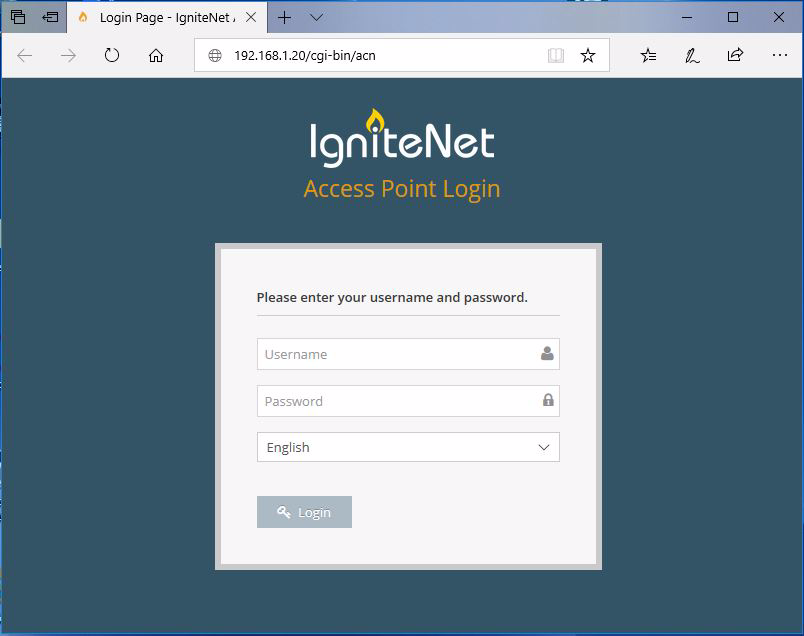
Log in to the web interface using the default settings:
- Username: root
- Password: admin123
Complete the setup wizard:
Select the country of operation for the access point. Setting the correct country ensures that the radios operate within local regulations specified for wifi networks.
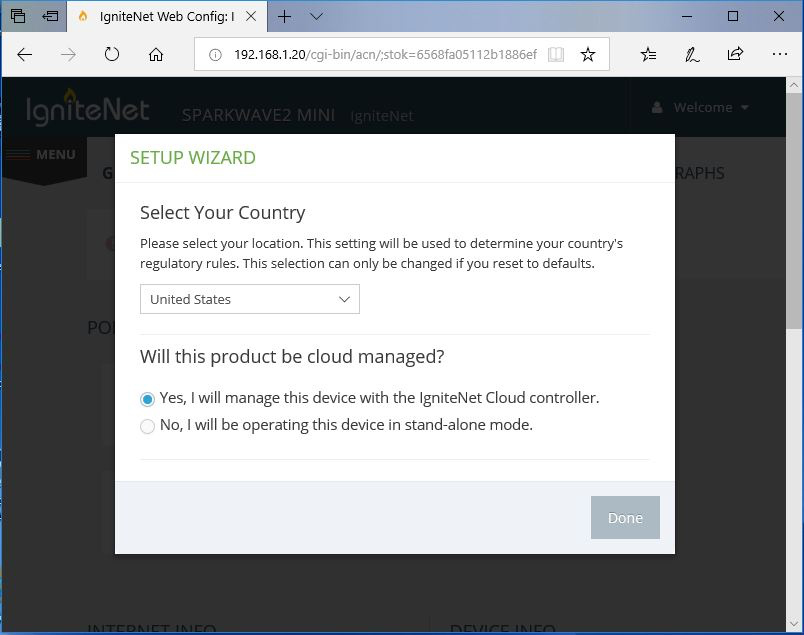
Ensure also that you select that the device will be managed with the IgniteNet Cloud controller.
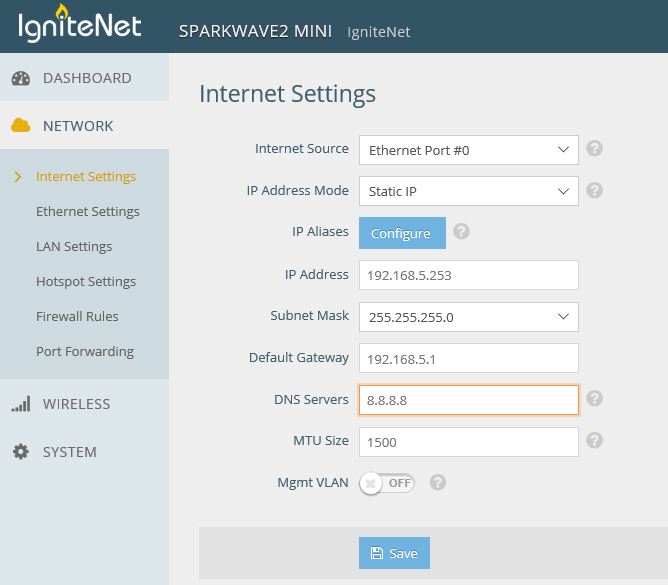
Configure the internet settings
Once into the web interface, go to: Network -> Internet settings to make the changes (don't forget to select 'Static IP' IP address Mode):
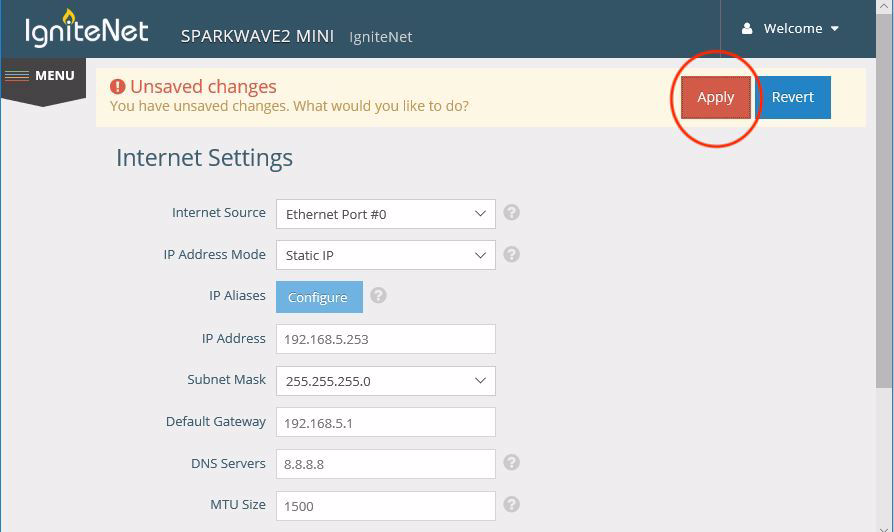
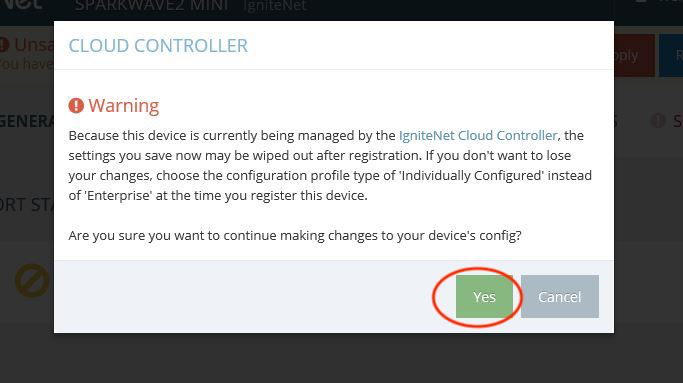
Don't forget to apply the changes and to click 'Yes' in the warning windows:
Was this article helpful?
That’s Great!
Thank you for your feedback
Sorry! We couldn't be helpful
Thank you for your feedback
Feedback sent
We appreciate your effort and will try to fix the article